Going Further
Previously, we created a simple digital twin with no sub-components. In this tutorial, we will move one step ahead and create a digital twin with 3 sub-components of the car.
- Electric Motor
- Transmission
- Wheels
We have to first create a digital twin of each of the individual components and then create a digital twin of the car using all its sub-components
Categories
Before we begin creating the blueprints for all the components. Lets first create the digital twin of the category that each blueprint belongs to. We will create the following categories for each element of the electric car.
- Motor
- Transmission
- Wheels
- Electric Vehicle
To go to categories section, follow these steps:
- Click on "Digital Twin" on the left hand side of the panel.
- Click on "Categories". 
We will now create the categories listed in the above mentioned list .
Steps:
- On the categories page, click on create category.
- Another screen will appear and fill in the proper category name.
- Click on create category to save.
This is the tutorial to create the category "Motor".
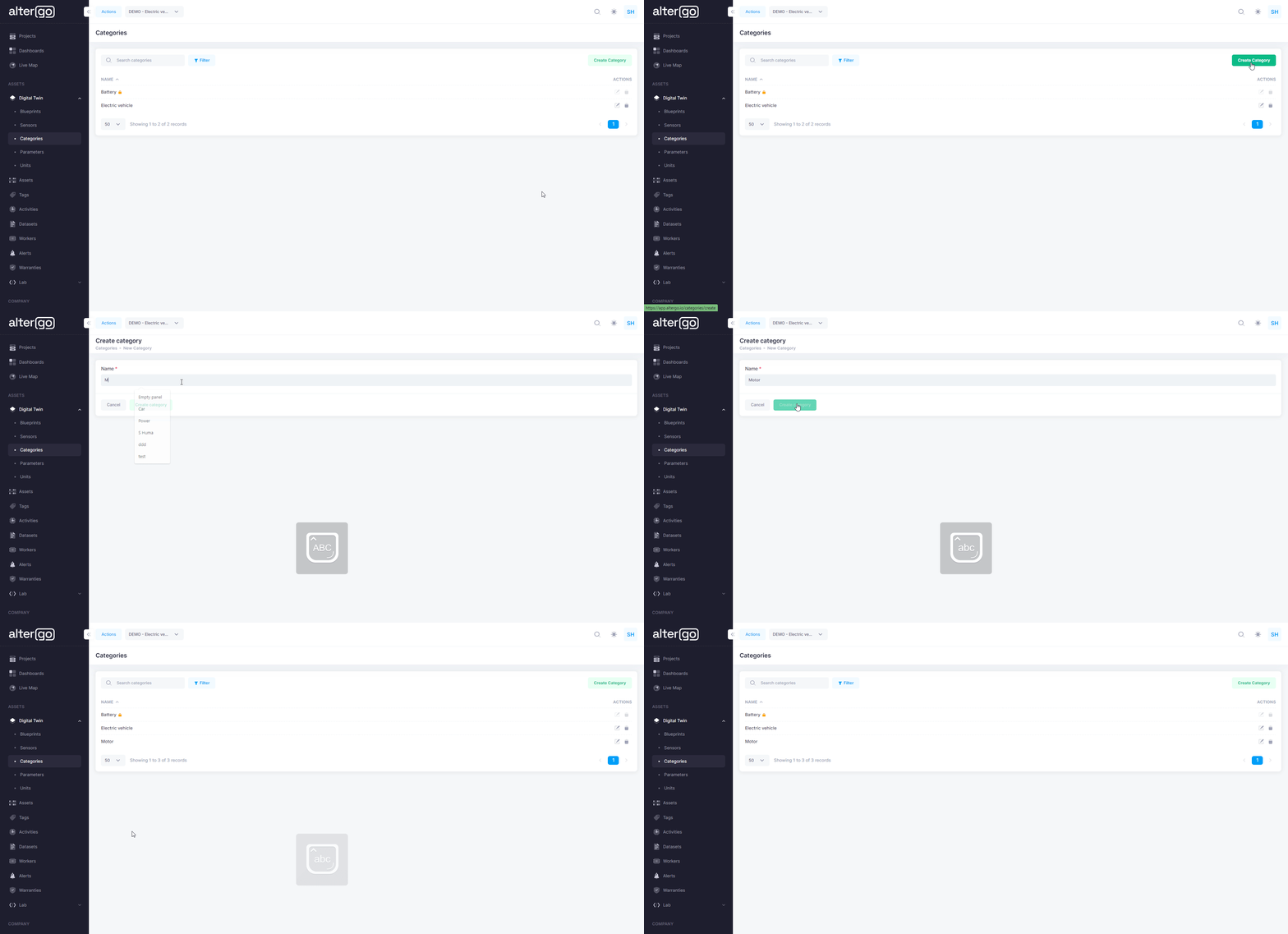
Similarly, create the rest of the categories: Transmission, Wheels and Electric Vehicle.
Electric Motor
An electric motor has the following characteristics. We will now use these characteristics and create a digital twin of the electric motor by first creating the digital twins of the individual parameters.
| Parameter | Unit | Value |
|---|---|---|
| Power | W | 100k |
| Speed | RPM | 1500 |
We will first create the digital twin of these characteristics as the parameters and units. After that we will use them for creation of its blueprint
Units
Every parameter has a relevant unit associated with it. In order to create the above mentioned paramaters we have to first create its relevant units.
To go to units section, follow these steps:
- Click on "Digital Twin" on the left hand side of the panel.
- Click on "Units". 
We will now create the parameters listed in the above mentioned table Steps:
- On the Units page, click on create unit.
- Another screen will appear and fill in the proper unit name.
- Click on create unit to save.
This is the tutorial to create the unit of Power i.e. "W".
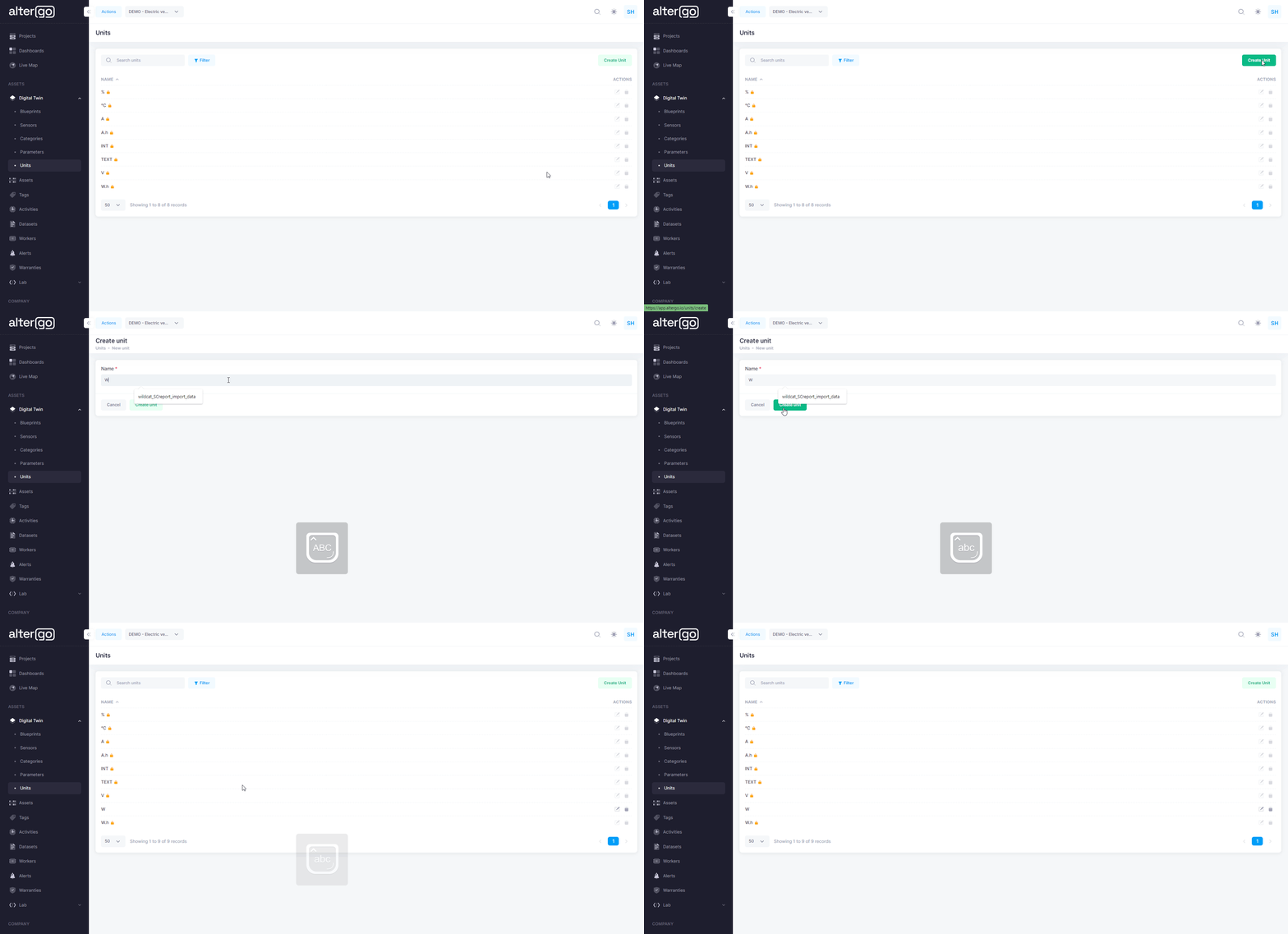
Similarly, create the unit of Speed i.e. "RPM".
Parameters

To go to parameter section, follow these steps:
- Click on "Digital Twin" on the left hand side of the panel.
- Click on "Parameters".
We will now create the parameters listed in the above mentioned table .
This is the tutorial to create the parameter Power.
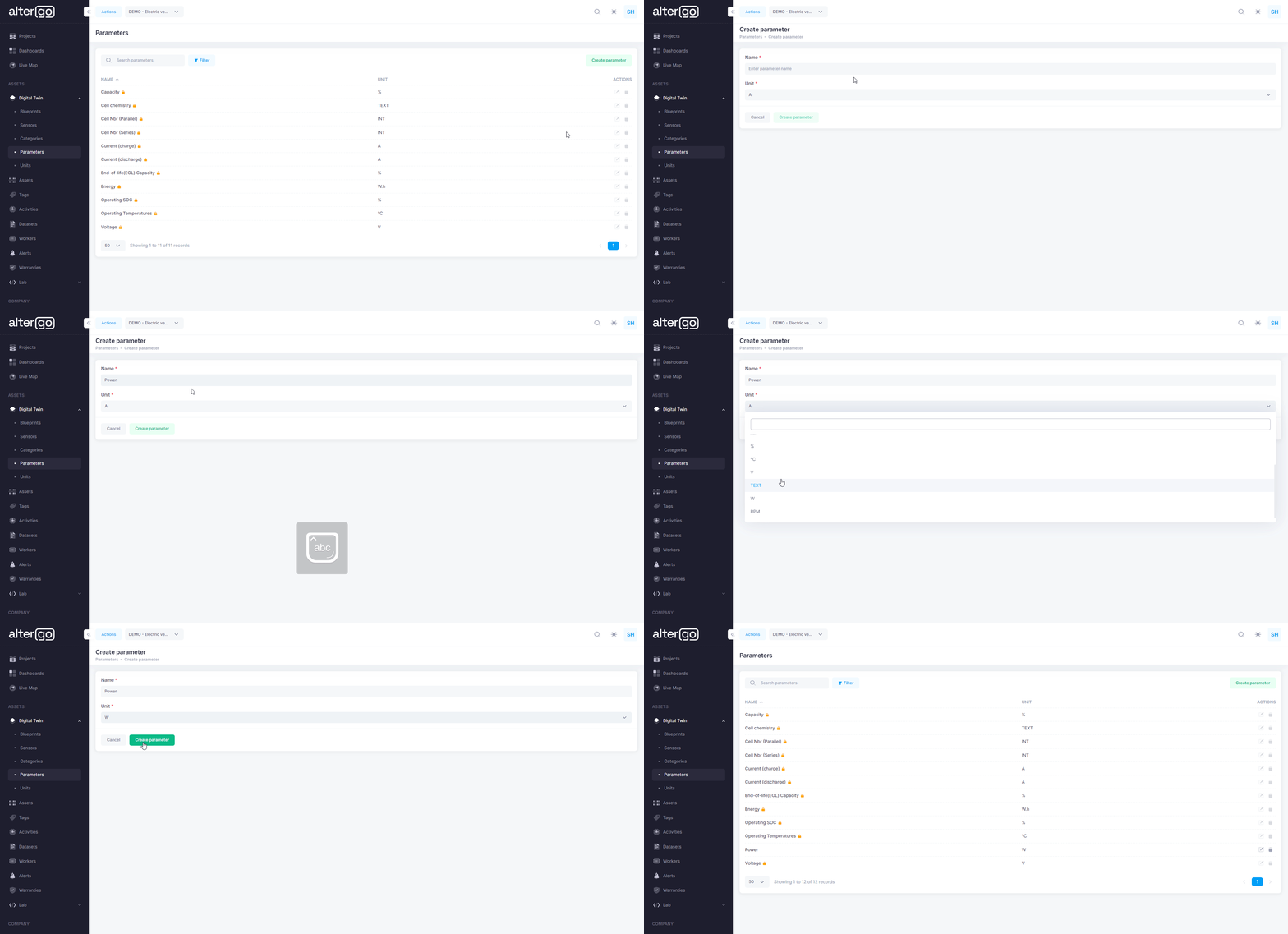
Steps:
- On the Units page, click on create parameter.
- Another screen will appear and fill in the proper parameter name.
- Select the relevant unit from drop-down options.
- Click on create parameter to save.
Similarly, create the Speed parameter.
Blueprint
The paramaters and units of the electric motor are setup. Now, lets create its blueprint. 
To go to blueprint section, follow these steps:
- Click on "Digital Twin" on the left hand side of the panel.
- Click on "Blueprints".
We will now create the blueprints of Electric Motor.
- This is the tutorial to initialise the creation the blueprint.
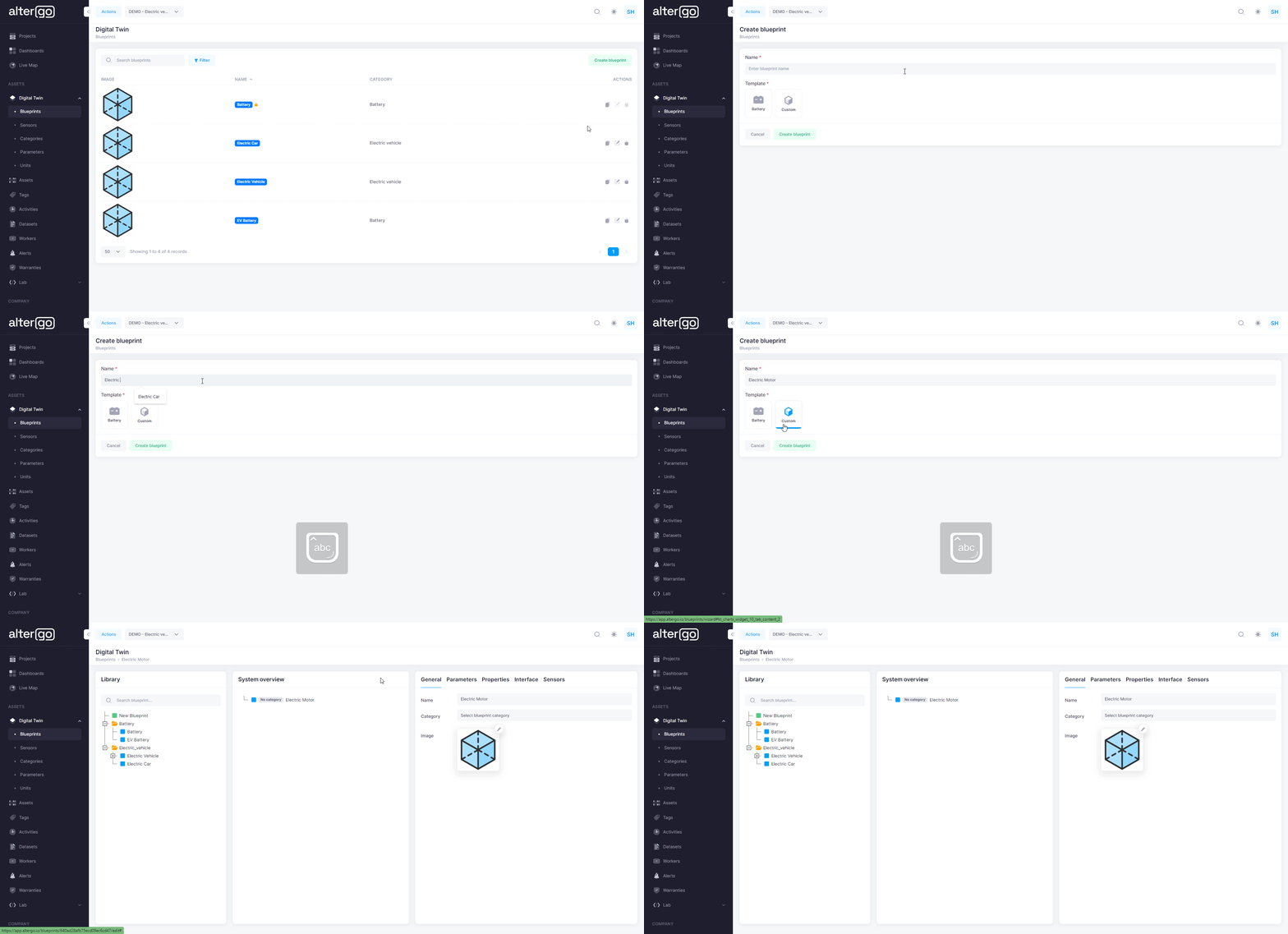
- Now, a new screen will appear. The blueprint has 5 sections. 
Now lets populate each section one by one:
General
-
Select the "Motor" category from the drop down section that we just created. 
-
Now upload a relevant image by clicking on the pencil icon as shown in the picture below. .png)
Parameter
This electric motor has the below pramaters and we will populate them one by one. These parameters are the maximum values of power and speed.
| Parameter | Unit | Value | Name Prefix | SI Prefix |
|---|---|---|---|---|
| Power | W | 100 | Maximum | k |
| Speed | RPM | 1500 | Maximum | No SI prefix |
This is the tutorial to create the parameters Power and Speed.

Steps:
- Click on add to enter the parameters.
- Now fill in the parameter name, value, name prefix and SI prefix.
- The parameter will be automatically saved.
Transmission
Transmission system of an electric car has the following characteristics. We will now use these characteristics and create a digital twin of the transmission system by first creating the digital twins of the individual parameters.
| Parameter | Unit | Value | Name Prefix |
|---|---|---|---|
| Gear Ratio | 1 | 7.5 (7.5:1) | Minimum |
| Speed | RPM | 1500 | Maximum |
The unit of gear ratio is 1 because it is a ratio of similar quantities. Use 1 as unit when quantities donot have a unit.
Unit and Parameter
Since, we already created "Speed", we need to create "Gear Ratio" only. We will create this parameter and its unit exactly like we created the parameters for "Electric Motor".
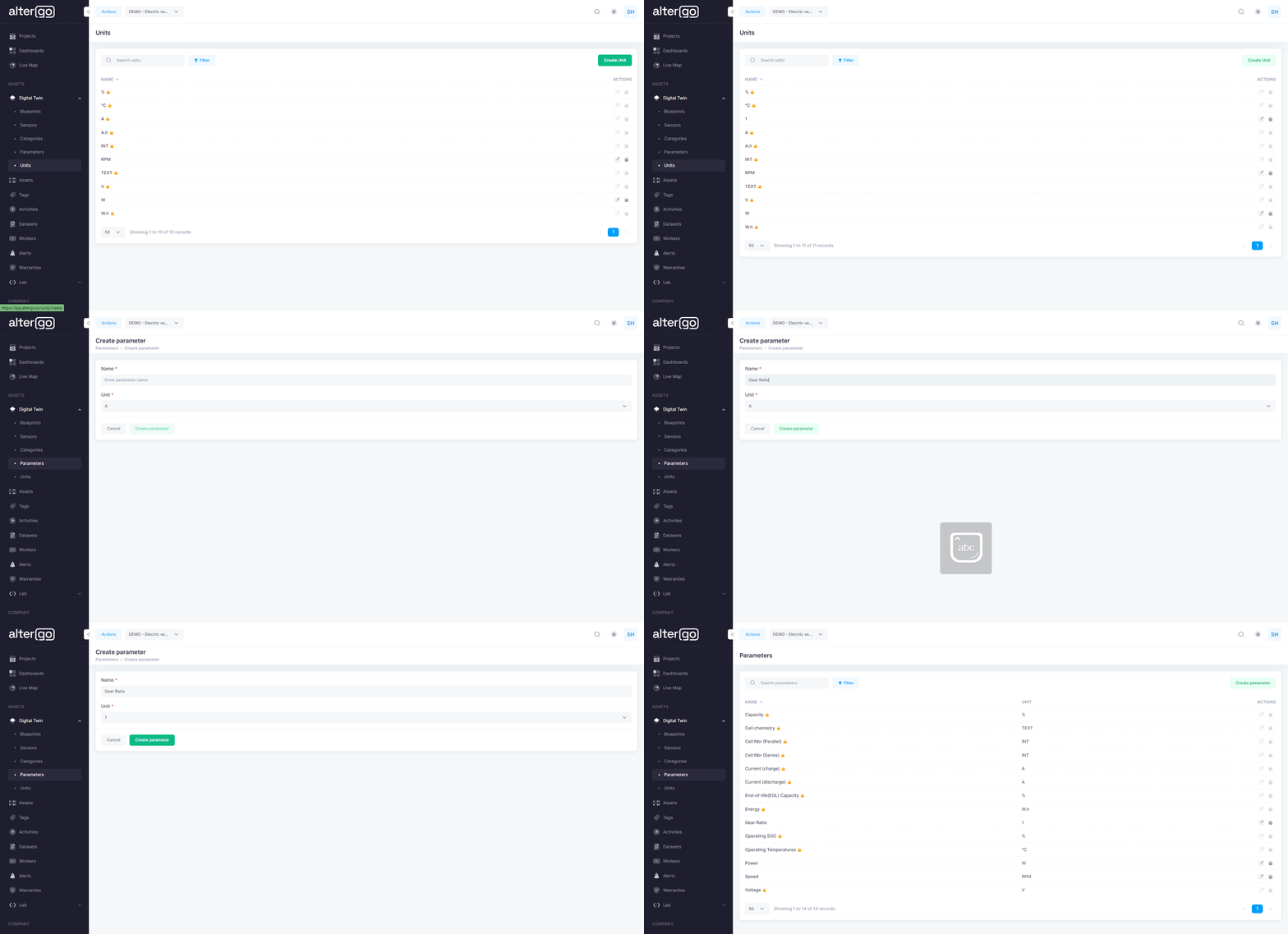 Steps:
- Create the relevant unit: 1
- Then, create the parameter
Blueprint
This is the tutorial to create the blueprint for the "Transmission" system.
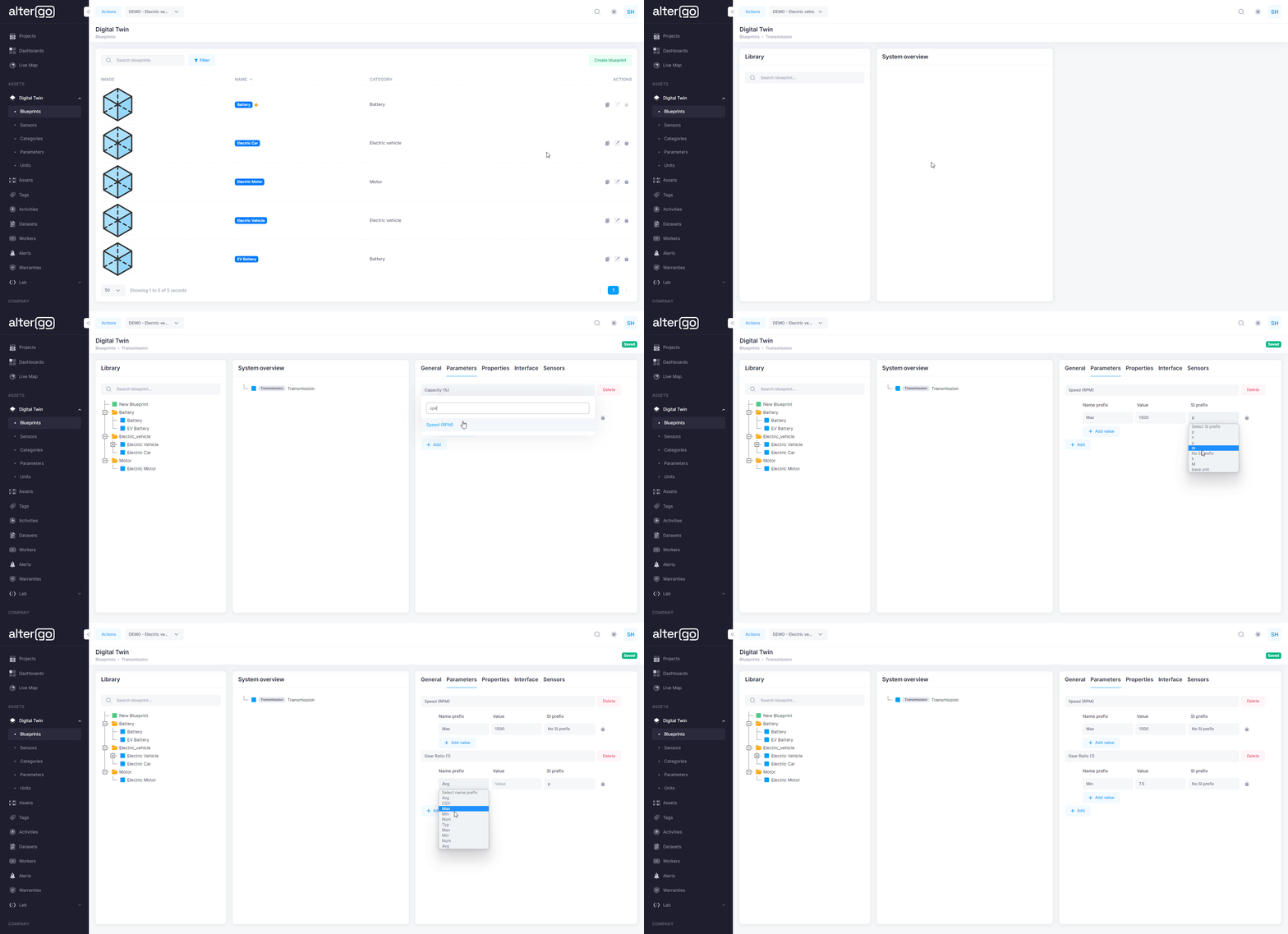
Wheels
Wheels of an electric car has the following characteristics. We will now use these characteristics and create a digital twin of the wheels by first creating the digital twins of the individual parameters.
| Parameter | Unit | Value | Name Prefix | SI Prefix |
|---|---|---|---|---|
| Front Wheel Diameter | inches | 9.5 | Maximum | No SI prefix |
| Rear Wheel Diameter | inches | 10.5 | Maximum | No SI prefix |
Unit and Parameter
We will create these parameters and its unit exactly like we created the parameters before.
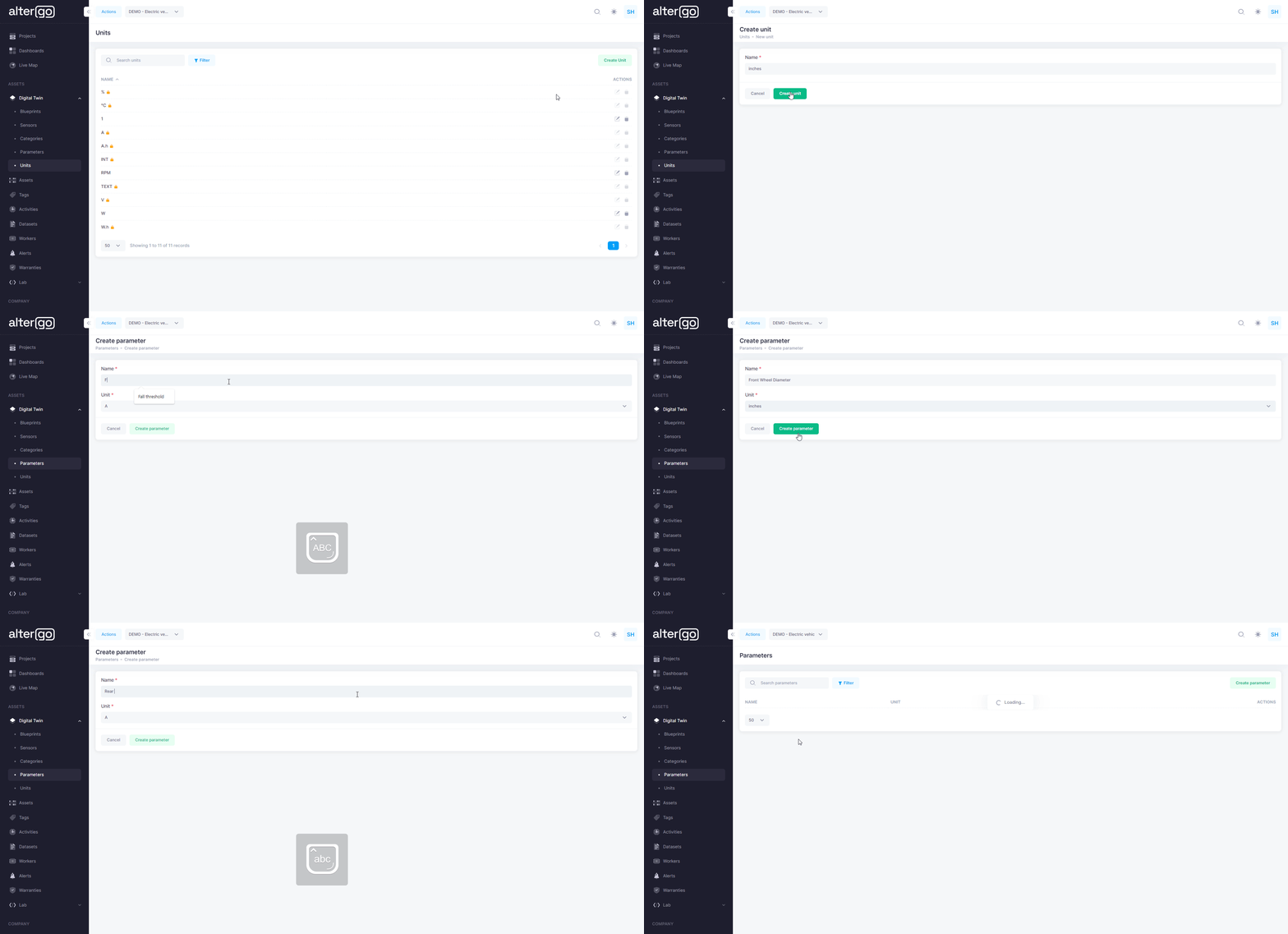
Steps:
- Create the relevant unit: inches
- Then, create the parameter
Blueprint
This is the tutorial to create the blueprint for the "Wheels" system.
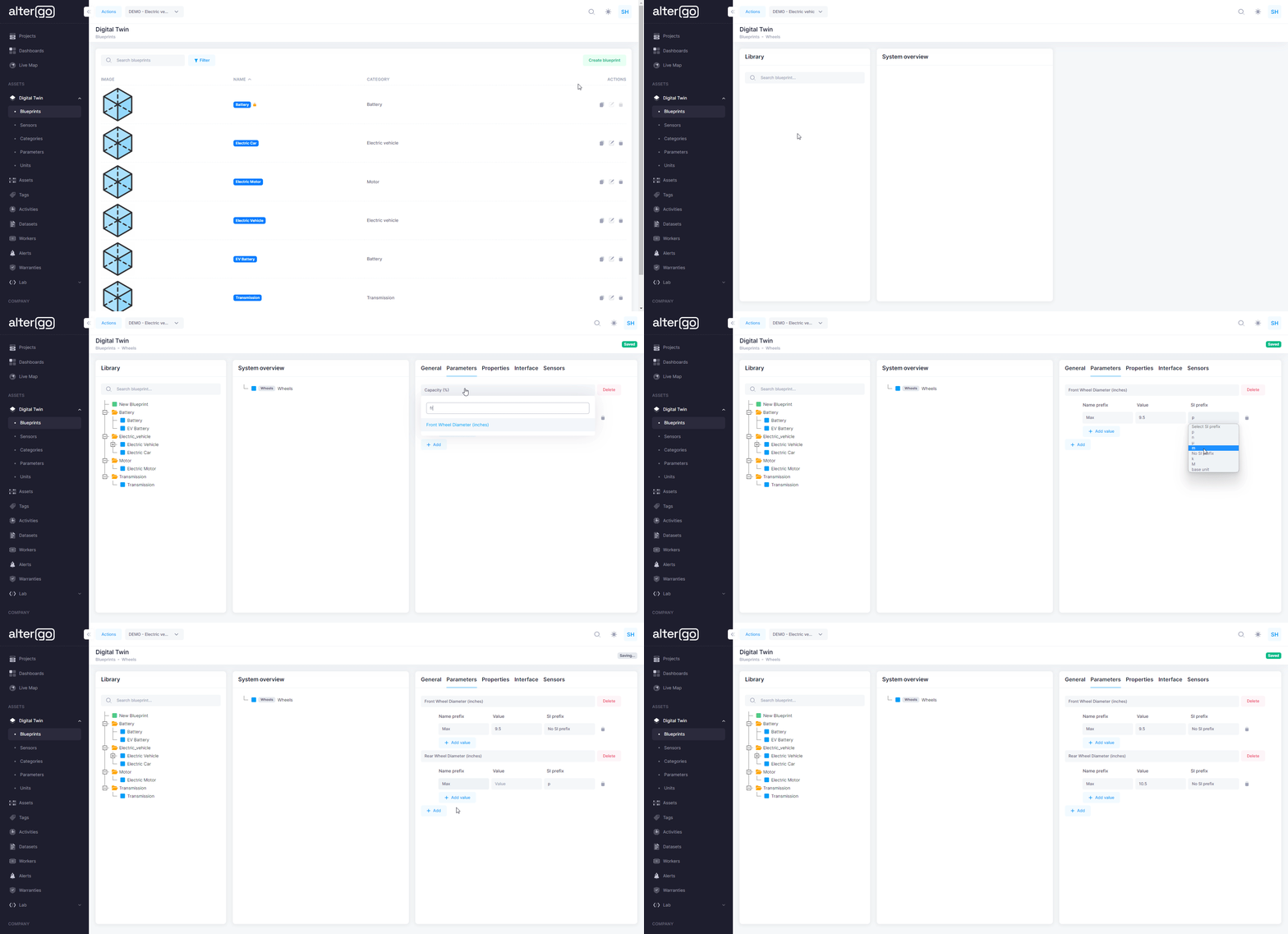
Electric Car
We have all the neccessary components, now we will create the digital twin of an electric car. An electric car has many characteristics. We will use the below information to populate all the sections of an electric car.
| Parameter | Properties | Sensors |
|---|---|---|
| Acceleration | Exterior Paint | Motor Voltage |
| Range | Interior Color | Motor Current |
| Speed | Special Features | Front Ultrasonic Sensor |
| Power | -- | Rear Ultrasonic Sensor |
| Weight | -- | Front Fender Camera |
| Charging Capacity | -- | Front Fender Camera |
| -- | -- | Regenerative Braking Signal |
Units and Parameters
We will first create parameters and their units. We will use the below values to create them.
| Parameter | Value | Unit | Name Prefix | SI prefix |
|---|---|---|---|---|
| Acceleration | 1.99 | seconds | Nominal | No SI prefix |
| Range | 396 | miles | Maximum | No SI prefix |
| Speed | 200 | mph | Maximum | No SI prefix |
| Power | 1020 | hp | Maximum | No SI prefix |
| Weight | 4766 | lbs | Minimum | No SI prefix |
| Charging Capacity | 250 | W | Maximum | k |
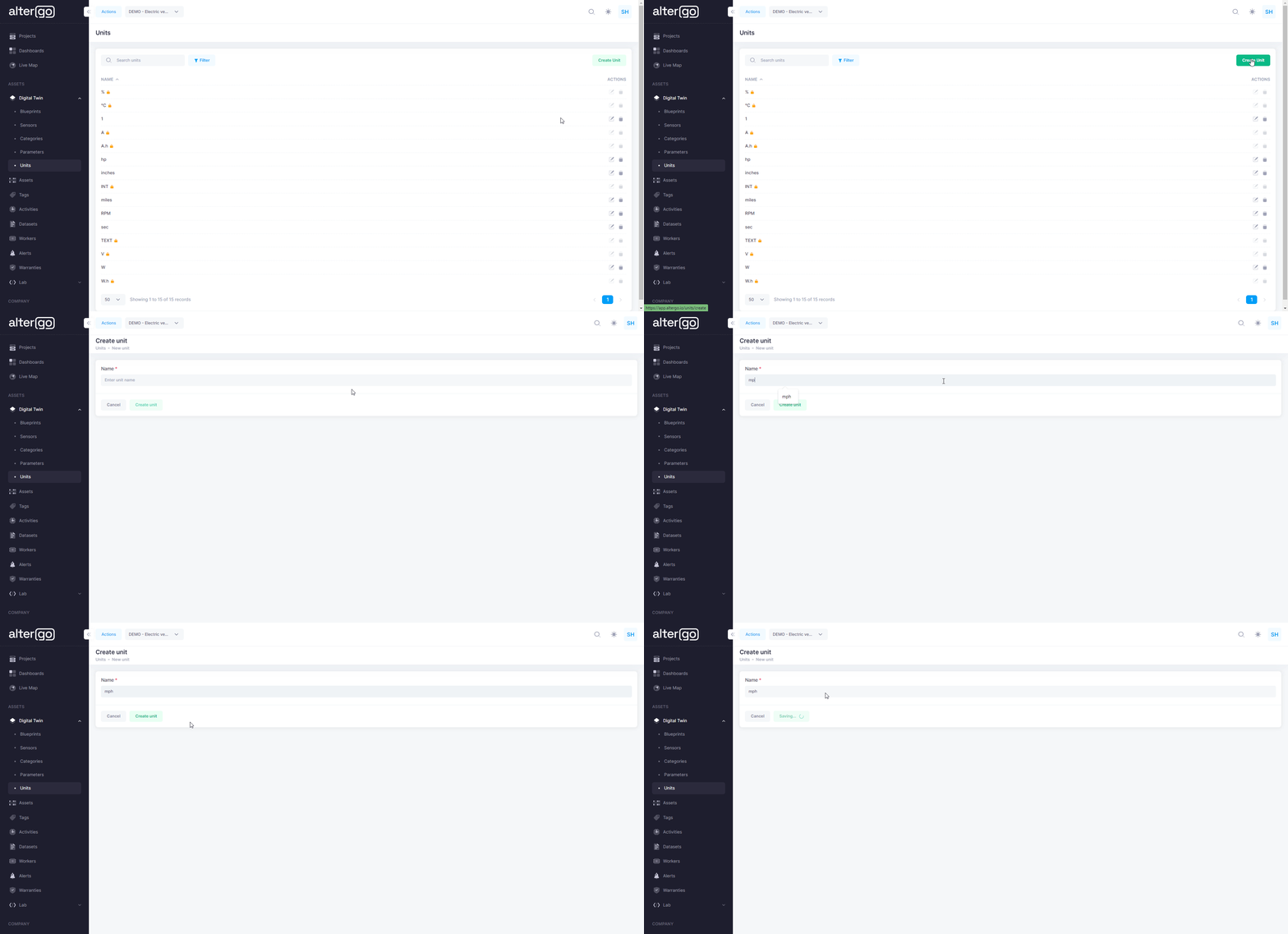
Units
This is the tutorial to create the units. I have created two units miles per hour "mph" and pound "lbs". Similarly create rest of the units.
Parameters
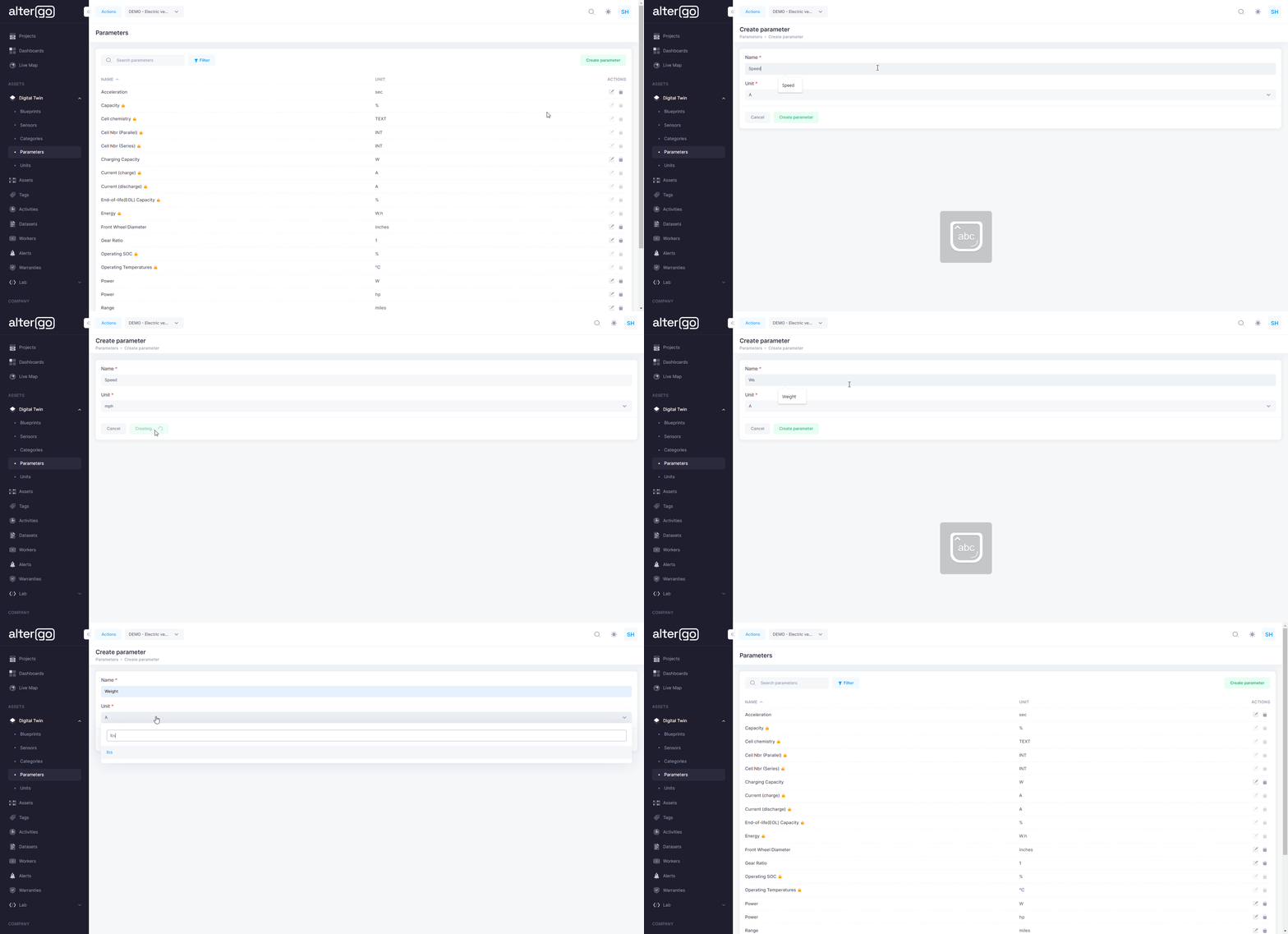
This is the tutorial to create the parameters. I have created two parameters "Speed" and "Weight". Similarly create rest of the parameters.
Sensors
To go to sensor section, follow these steps:
- Click on "Digital Twin" on the left hand side of the panel.
- Click on "Sensors".

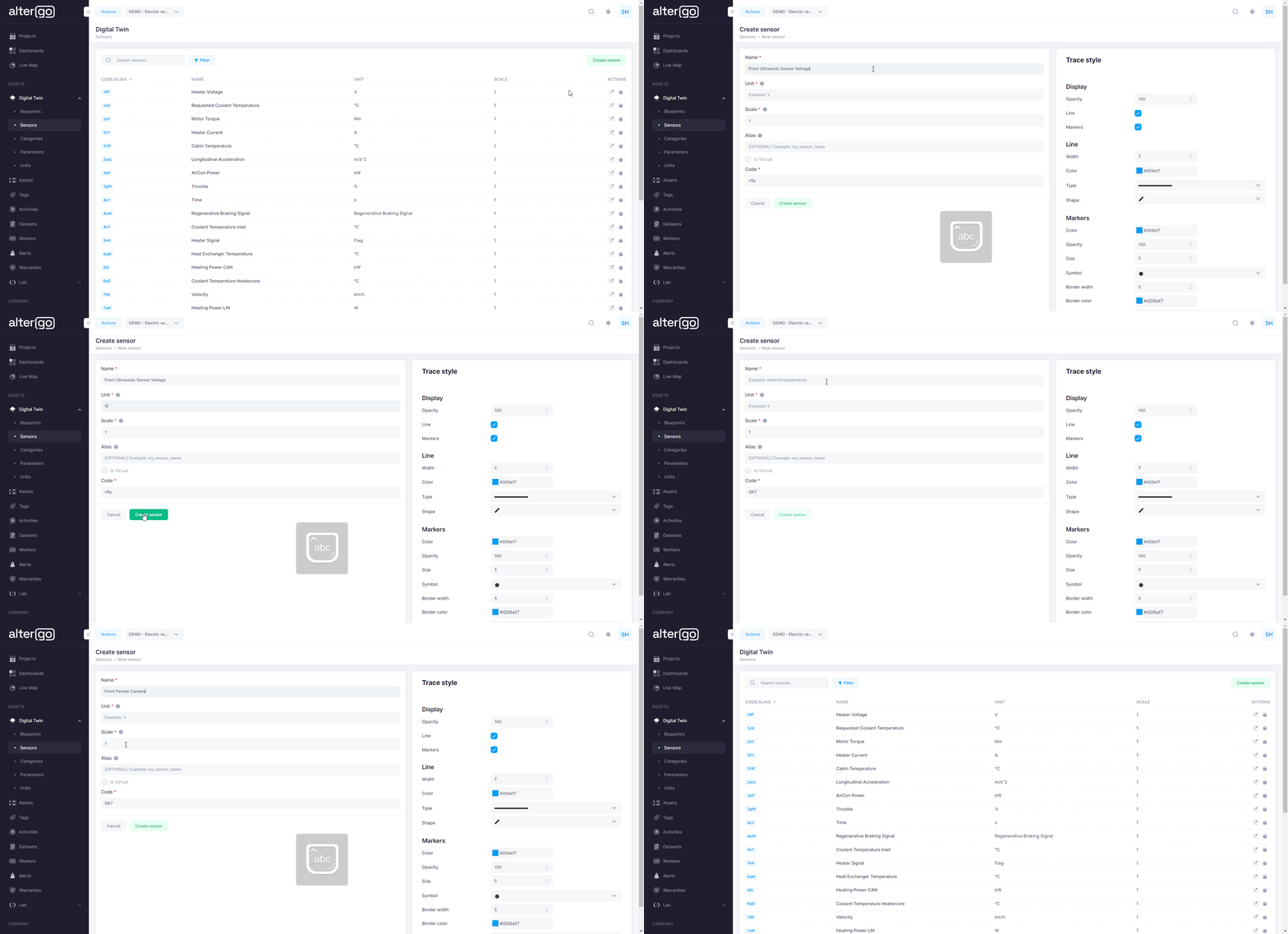
We will now create the sensors relevant to an electric car. We will use the below values to create them.
| Sensors | Array map | Units |
|---|---|---|
| Motor Voltage | 1 | V |
| Motor Current | 1 | A |
| Front Ultrasonic Sensor Voltage | 1 | V |
| Rear Ultrasonic Sensor Voltage | 1 | V |
| Front Fender Camera | 3 | 1 |
| Rear Fender Camera | 3 | 1 |
| Regenerative Braking Signal Torque | 1 | Nm |
The array map of front and rear fender camera sensor is 3 because the values are recieved as Red, Blue Green [R,G,B] values.
This is the tutorial to create the sensors. I have created two sensors "Front Ultrasonic Sensor Voltage" and "Front Fender Camera". Similarly create rest of the sensors.
Electric Car Blueprint
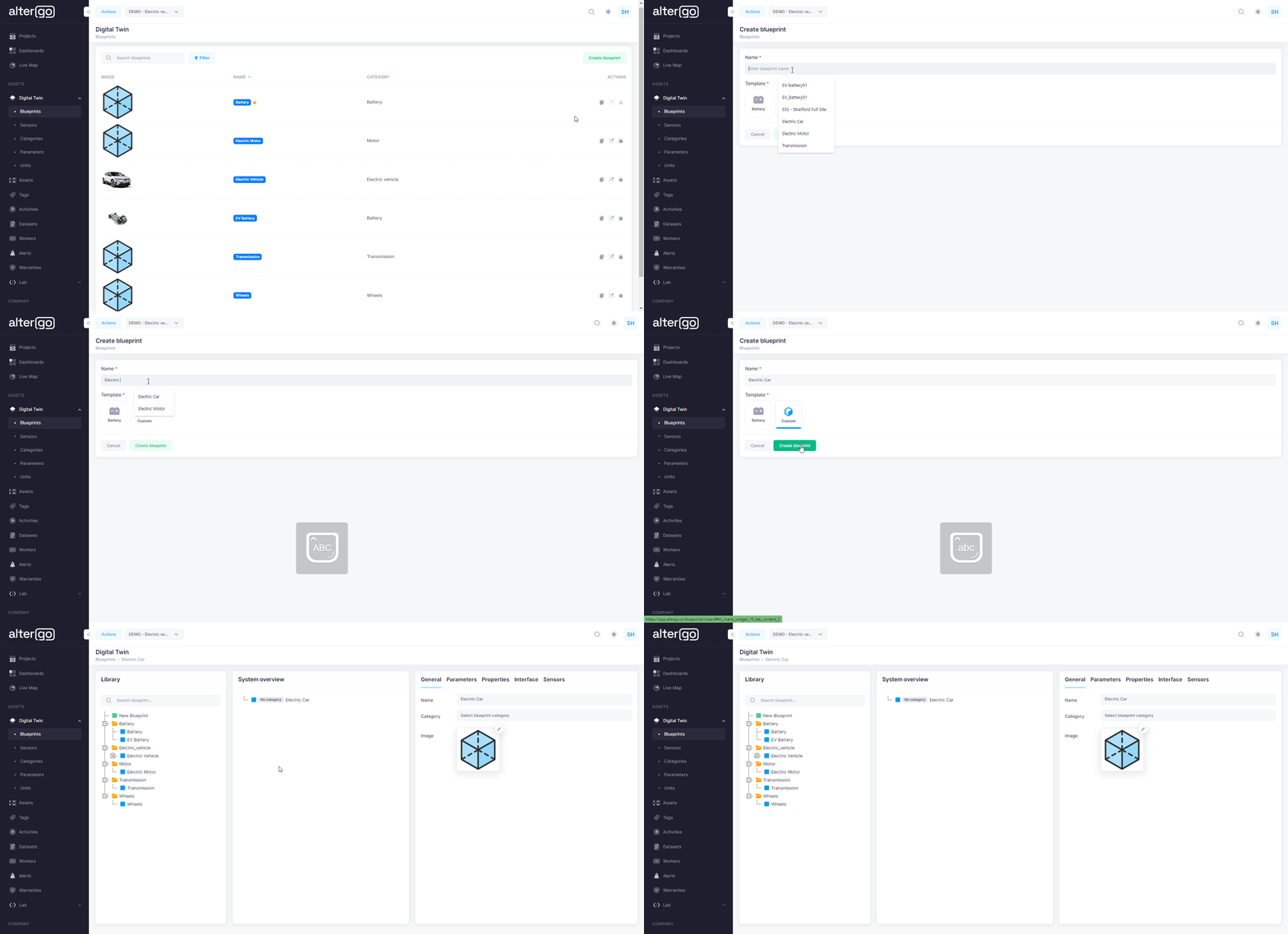
All the neccessary elements have been set up to create an electric car blueprint.
Create the blueprint
Fill in blueprint details
A blueprint has 5 sections. Let's fill in the blueprint details of each section one by one.
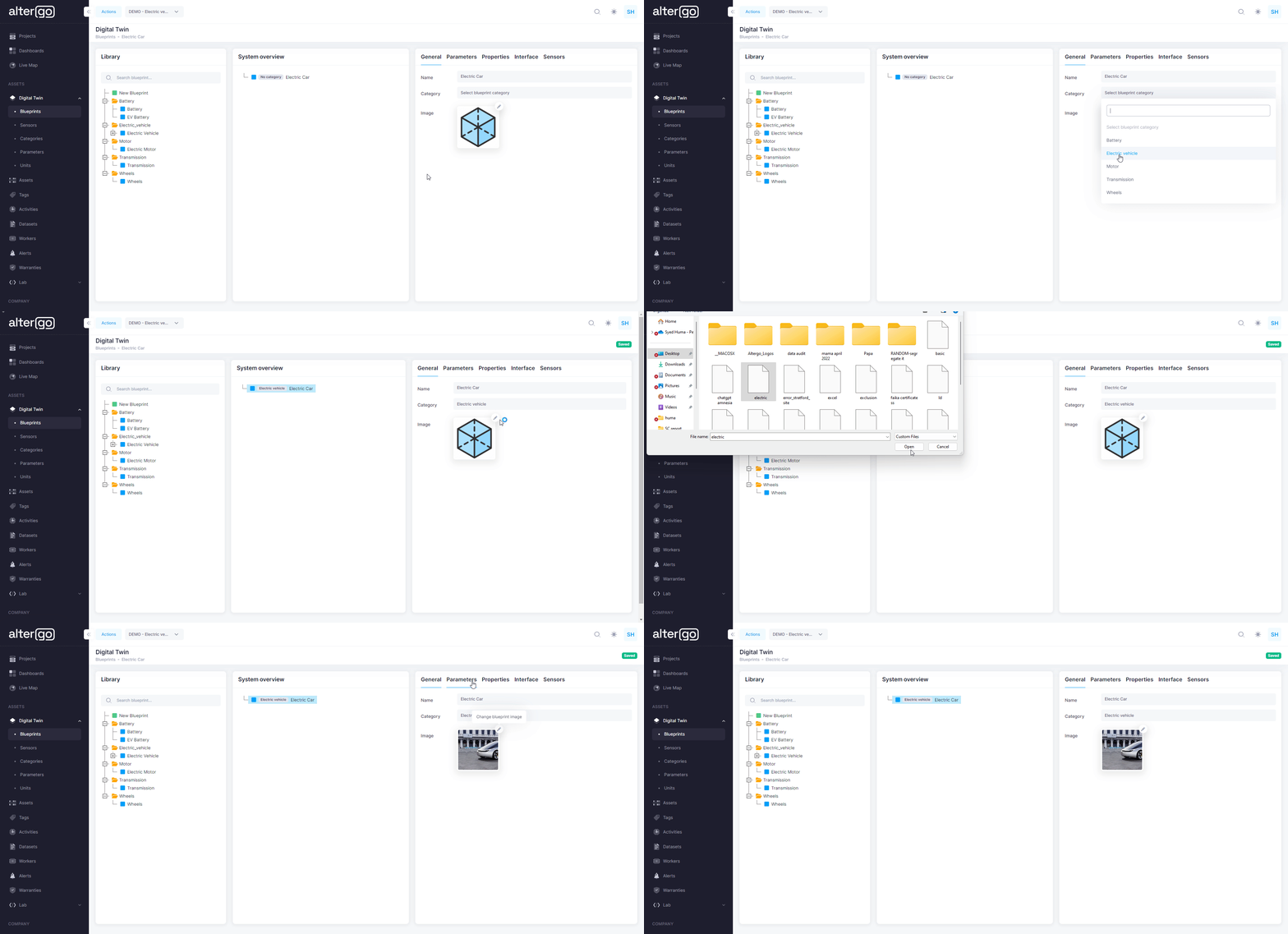
General:
- Select "Electric Vehicle" from the dropdown section of the category option
- Upload a relevant image for the blueprint
Parameters
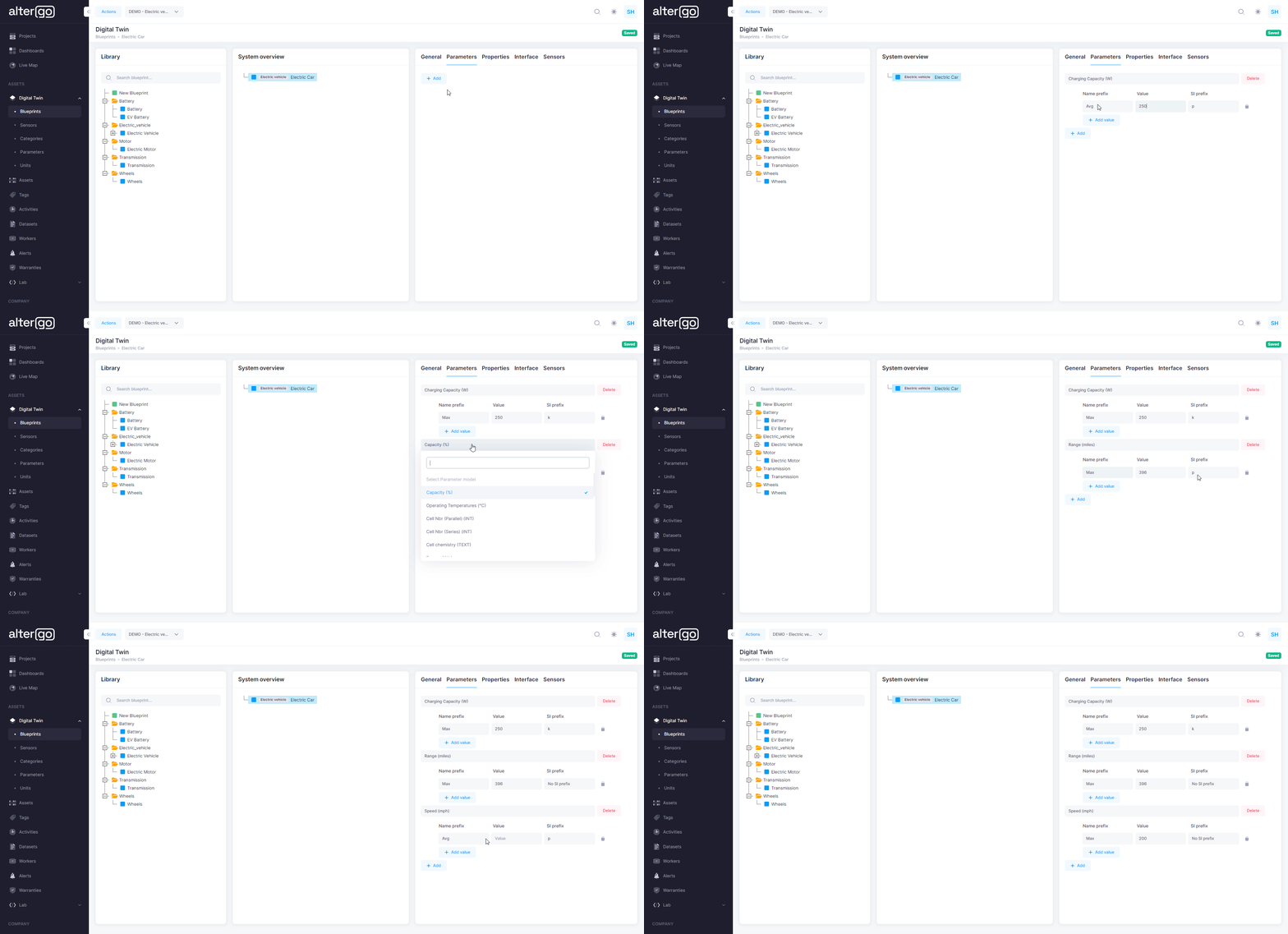
These fields will be used to populate the parameter section.
| Parameter Name | Value | Unit | Name prefix | SI prefix |
|---|---|---|---|---|
| Acceleration | 1.99 | seconds | Nominal | No SI prefix |
| Range | 396 | miles | Maximum | No SI prefix |
| Speed | 200 | mph | Maximum | No SI prefix |
| Power | 1020 | hp | Maximum | No SI prefix |
| Weight | 4766 | lbs | Minimum | No SI prefix |
| Charging Capacity | 250 | W | Maximum | k |
Steps:
- Click on "Add".
- Select the above listed parameter model name from the drop-down options.
- Type the corresponding value.
- Select the Name prefix and SI prefix.
- The updates will be automatically saved in the blueprint.
This is the tutorial to create the parameters. I have created three parameters " Charging Capacity", "Range" and "Speed". Similarly, create rest of the parameters.
Properties
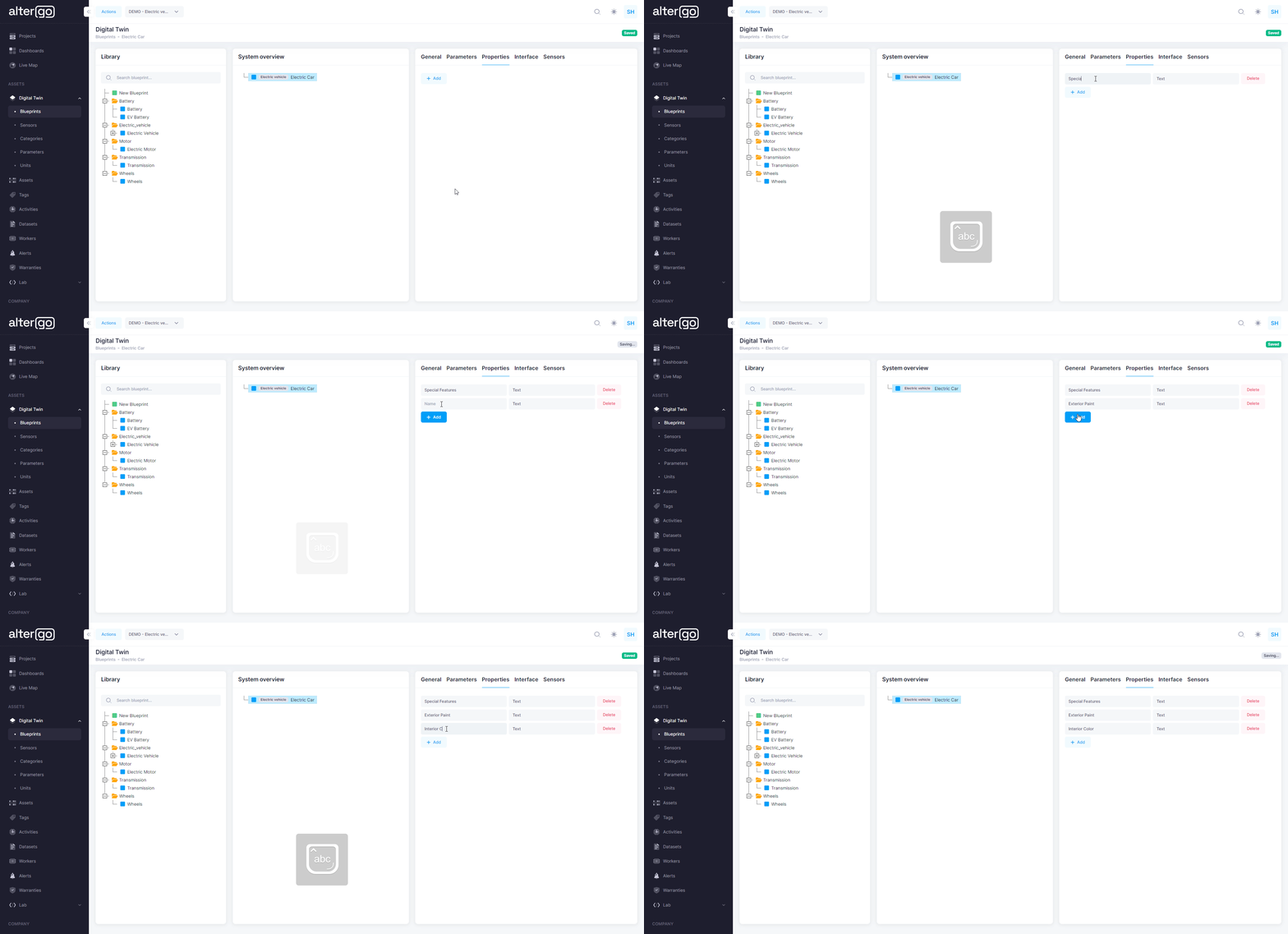
These fields will be used to populate the properties section. The properties can be different for each asset and the values will be filled up when we will create the asset.
| Property Name | Property Type |
|---|---|
| Exterior Paint | TEXT |
| Interior Color | TEXT |
| Special Features | TEXT |
Steps:
- Click on "Add".
- Type the above listed property name
- Select the property type from the drop-down options.
- The updates will be automatically saved in the blueprint.
This is the tutorial to create all the three properties.
Interface
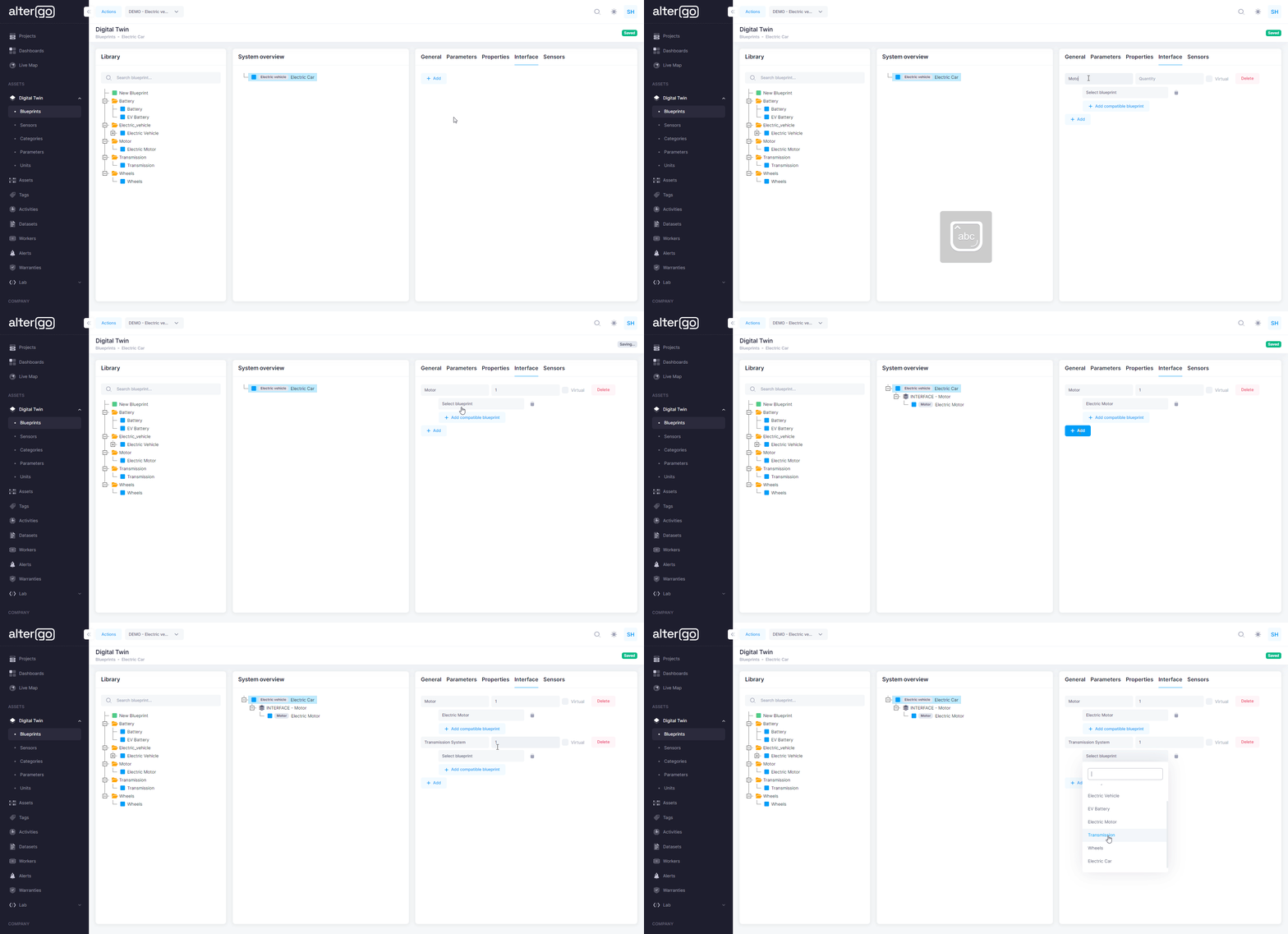
The 3 component blueprints (Electric Motor, Transmission, Wheels) of this car will be linked to its parent blueprint, electric car through this section. These fields will be used to populate the interface section.
| Interface Name | Quantity | Blueprint |
|---|---|---|
| Motor | 1 | Electric Motor |
| Transmission System | 1 | Transmission |
| Wheels | 4 | Wheels |
Steps:
- Click on "Add".
- Type the above listed interface name.
- Type the quantity of the sub-component.
- Select the relevant blueprint from the drop-down options.
- The updates will be automatically saved in the blueprint.
This is the tutorial to create all the interfaces. I have added two sub-components "Motor", "Transmission System". Similarly, add the wheels sub-component.
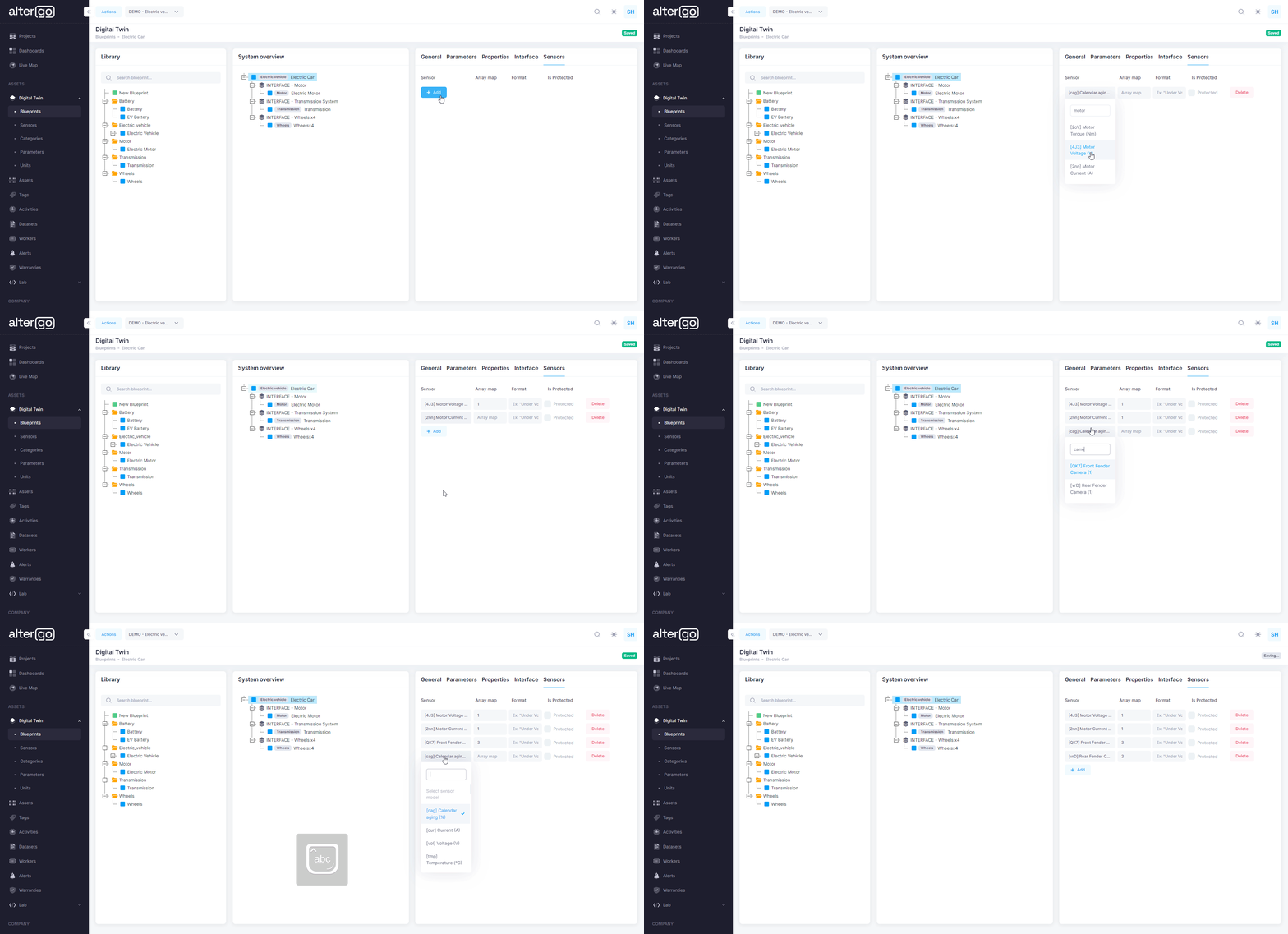
Sensors
These fields will be used to populate the sensors section.
| Sensors | Array map |
|---|---|
| Motor Voltage | 1 |
| Motor Current | 1 |
| Front Ultrasonic Sensor Voltage | 1 |
| Rear Ultrasonic Sensor Voltage | 1 |
| Front Fender Camera | 3 |
| Rear Fender Camera | 3 |
| Regenerative Braking Signal Torque | 1 |
Steps:
- Click on "Add".
- Select the above listed sensor name from the drop-down options.
- Type the array map of the particular sensor.
- The updates will be automatically saved in the blueprint.
This is the tutorial to create the parameters. I have created four sensors "Motor Voltage", "Motor Current", "Front Fender Camera" and "Rear Fender Camera". Similarly, create rest of the sensors.
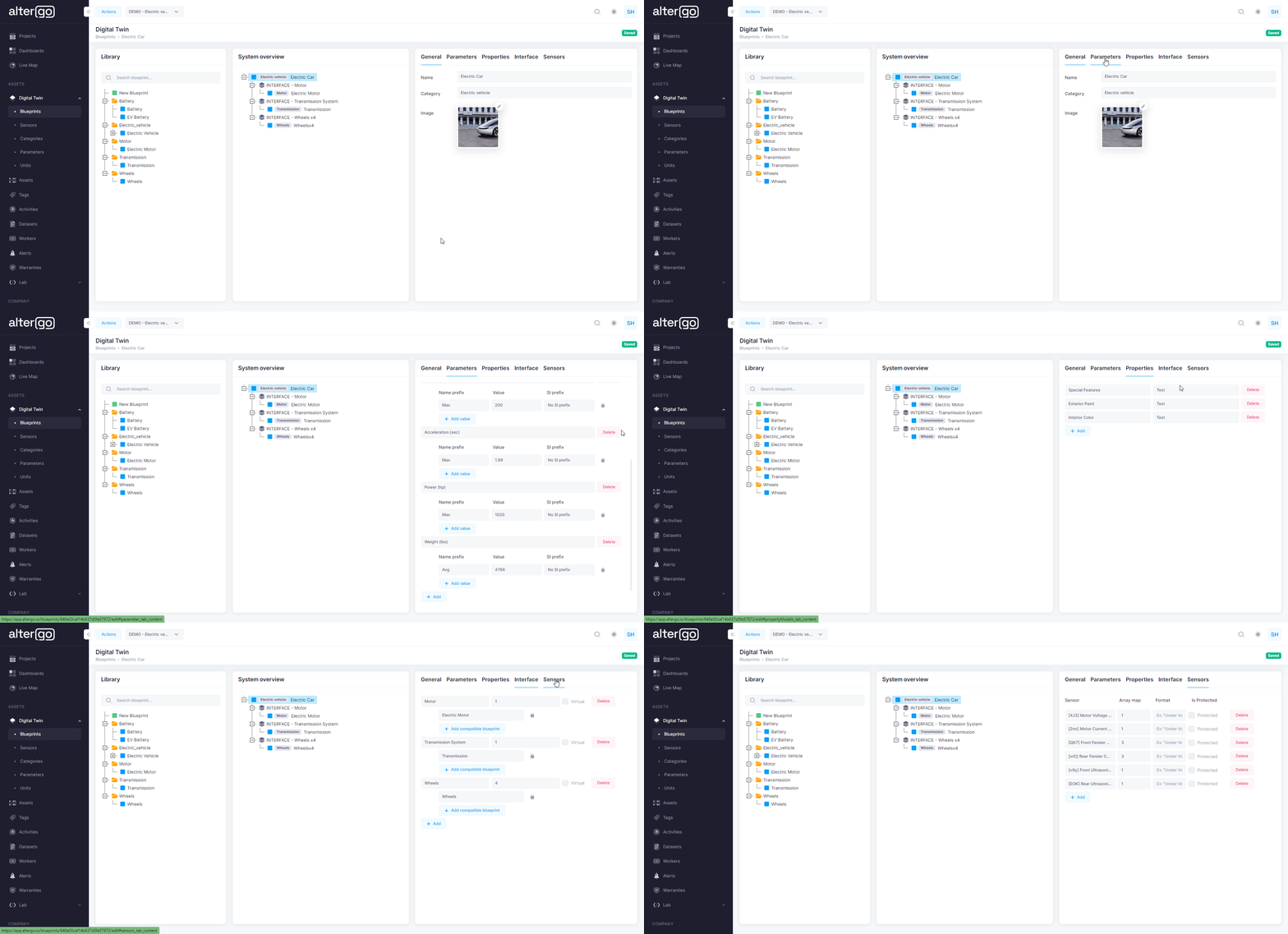
After updating all the five sections of the blueprint. This is how the complete blueprint will look like in the edit mode.
Create Asset
Now, that we have a blueprint of our electric car. We will create two assets using the blueprint of the electric car. Our goal is to create a digital twin of two cars, both of them have the same blueprint but have a few different properties.
A blueprint is a physical representation of a type of a physical quantity and an asset is the particular entity of the type of physical quantity e.g. a company has two electric vehicles both are Model S of Tesla. Both of these cars have battery voltage and current sensor. These cars will have the same blueprint but will be created as different assets to account for its data individually. Also, using the properties section of the blueprint we can account for the differences in an asset e.g. color of the car maybe different or some features may be different, etc.
First of all, create the asset of the sub-components of the car: Electric Motor, Transmission, Wheels. We want to create two assets of the electric car, therefore we will create 6 sub-component assets, each for an individual car asset.
We have two of those electric cars, therefore we will create two assets. These are the properties of each asset.
| Asset Serial Number | Property Name | Property Value |
|---|---|---|
| black_electric_car | Special Feature | Autopilot Mode |
| black_electric_car | Exterior Paint | Charcoal Black |
| black_electric_car | Interior Color | Beige |
| red_electric_car | Special Feature | Autopilot Mode |
| red_electric_car | Exterior Paint | Crimson Red |
| red_electric_car | Interior Color | Black |
Electric Motor
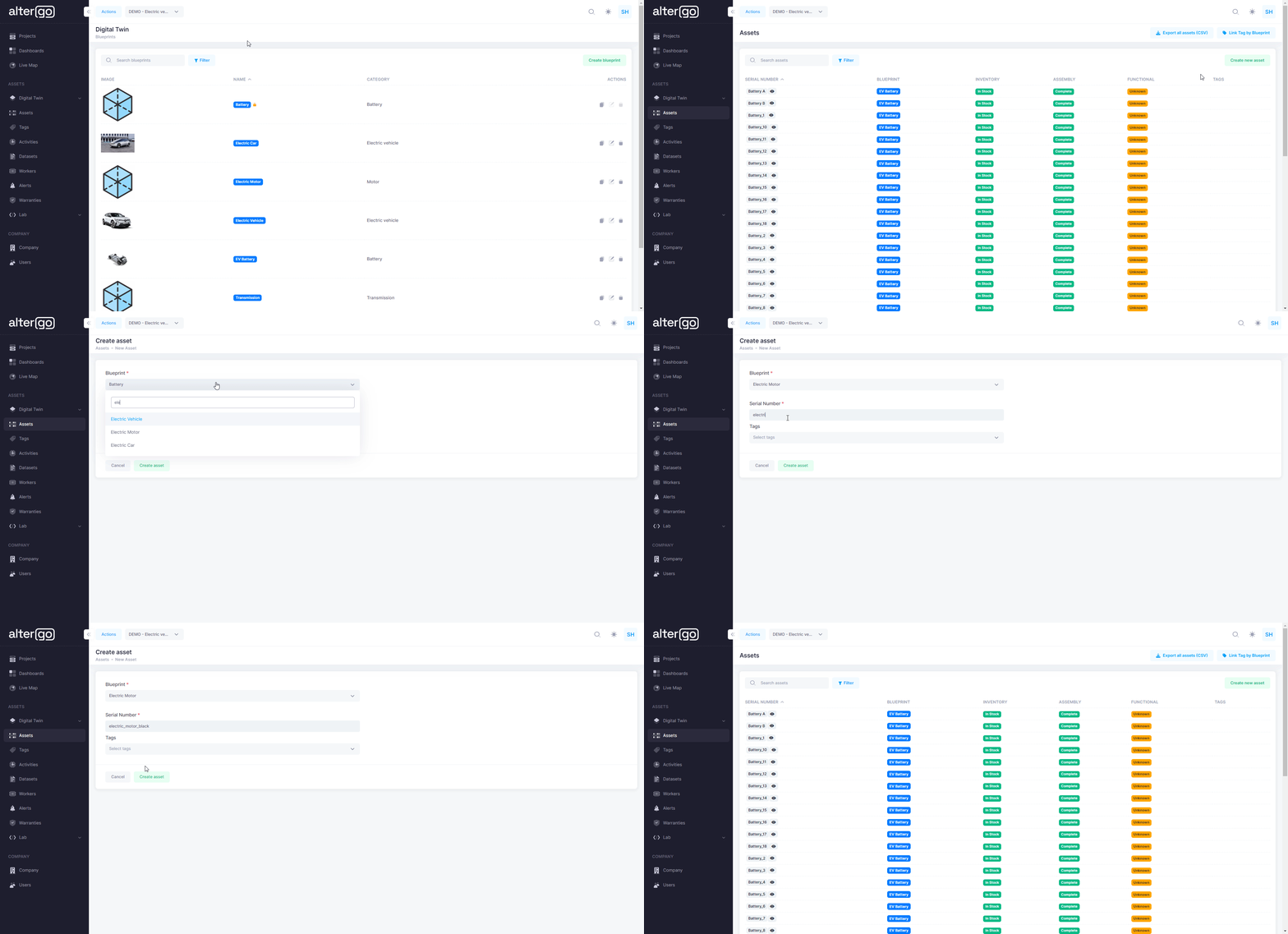
Lets create 2 assets of electric motor each corresponding to the two electric car assets.
- Serial number of first asset: "electric_motor_black", corresponding to the black electric car.
- Serial number of second asset: "electric_motor_red", corresponding to the red electric car.
Steps:
- Click on "assets" on the left hand side of the panel.
- Click on "create new asset".
- Select the blueprint( electric motor) associated with this asset from the drop-down section.
- Enter the serial number, "electric_motor_black" and "electric_motor_red".
- Click on "create asset".
Transmission
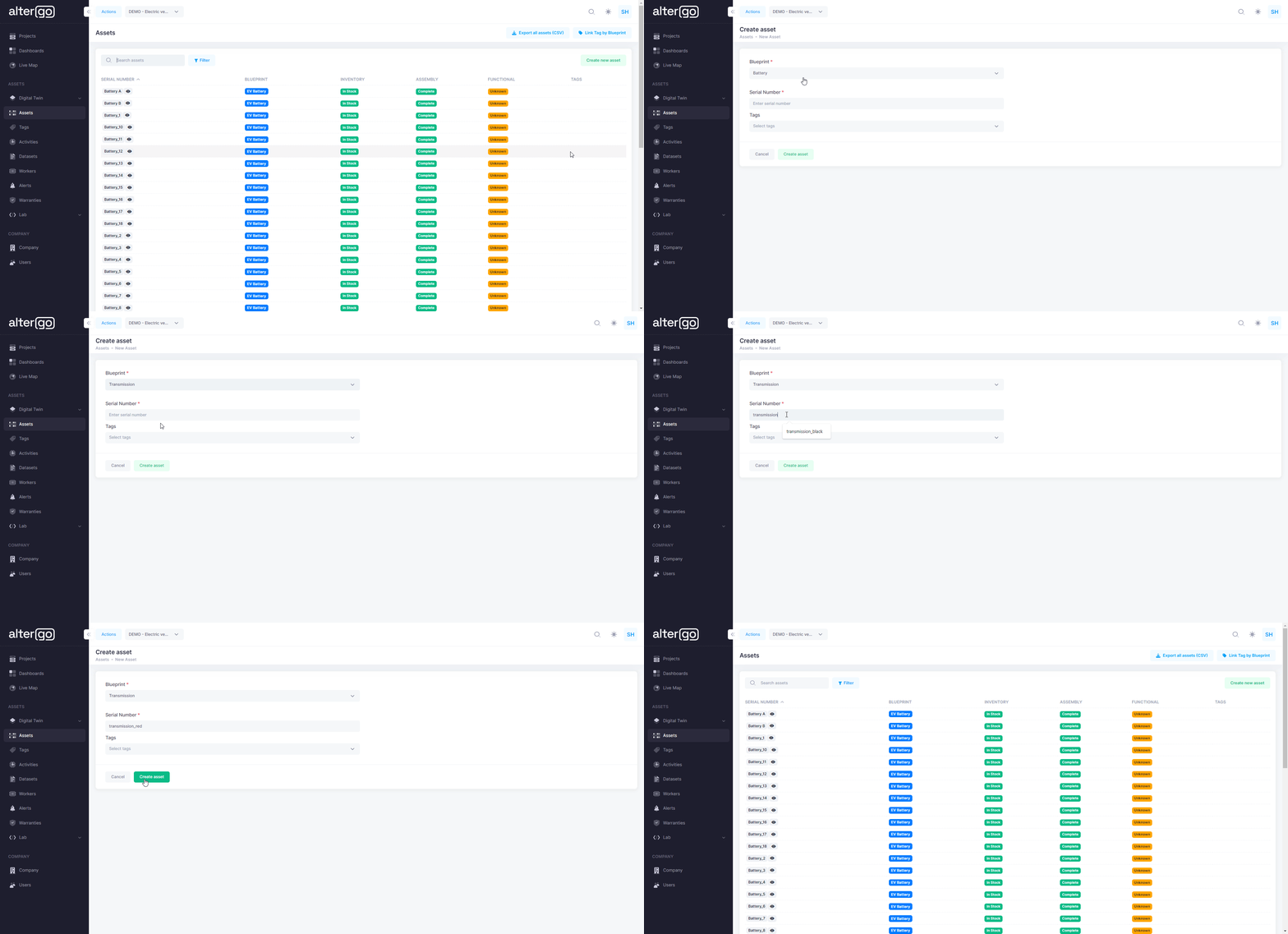
Lets create 2 assets of transmission system each corresponding to the two electric car assets.
- Serial number of first asset: "transmission_black", corresponding to the black electric car.
- Serial number of second asset: "transmission_red", corresponding to the red electric car.
Steps:
- Click on "create new asset".
- Select the blueprint( transmission) associated with this asset from the drop-down section.
- Enter the serial number, "transmission_black" and "transmission_red".
- Click on "create asset".
Wheels
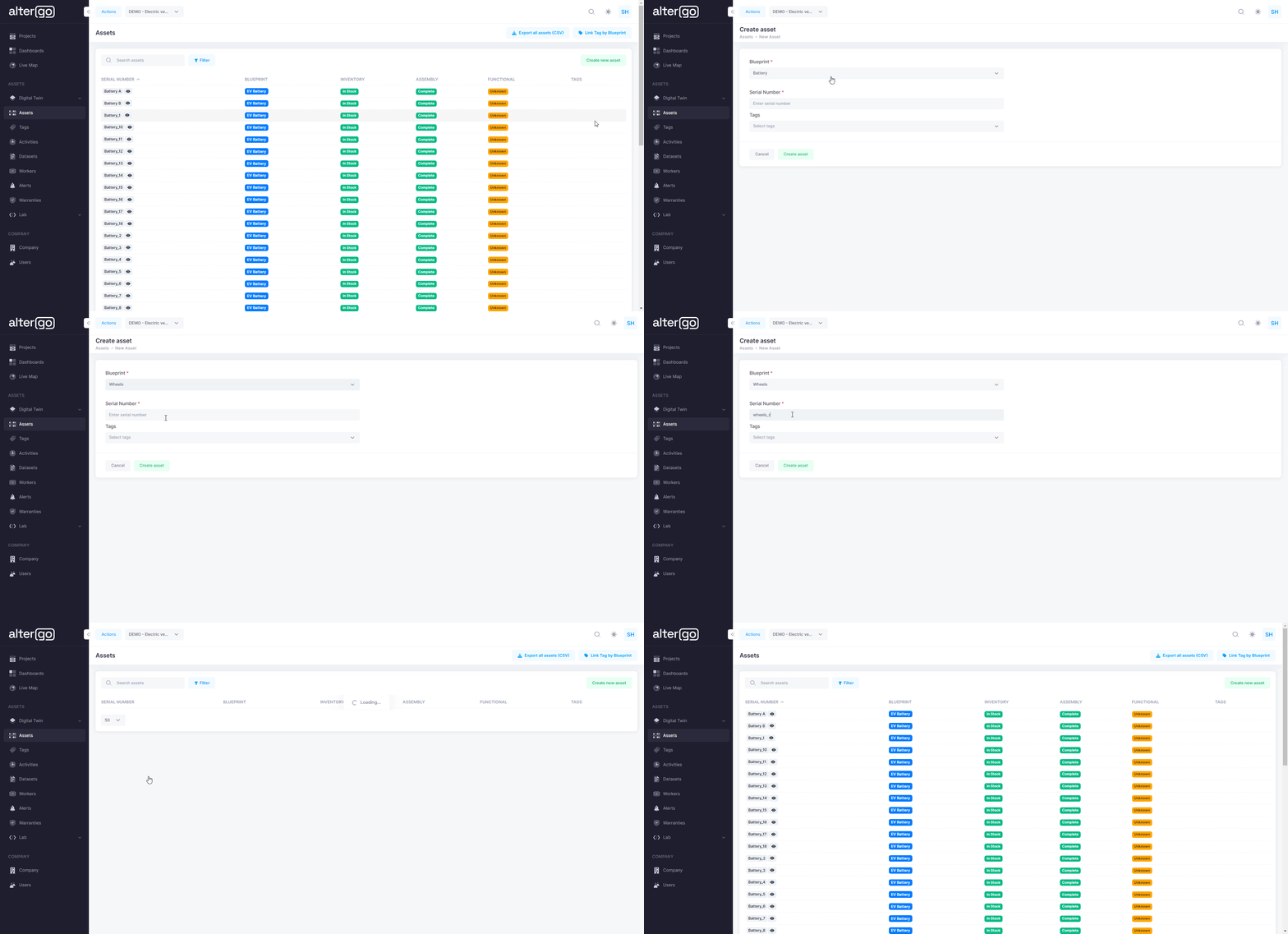
Lets create 8 assets of wheels each corresponding to the two electric car assets.
- Serial number of wheel assets for the black electric car: "wheels_black", "wheels_black2", "wheels_black3", and "wheels_black4".
- Serial number of wheel assets for the red electric car: "wheels_red", "wheels_red2", "wheels_red3", and "wheels_red4" corresponding to the black electric car.
Steps:
- Click on "create new asset".
- Select the blueprint( wheels) associated with this asset from the drop-down section.
- Enter the serial number, "wheels_black", "wheels_red", etc.
- Click on "create asset".
This is the tutorial to create the wheels asset. I have created the asset "wheels_red" in this tutorial. Similarly, create the other seven assets.
Electric Car
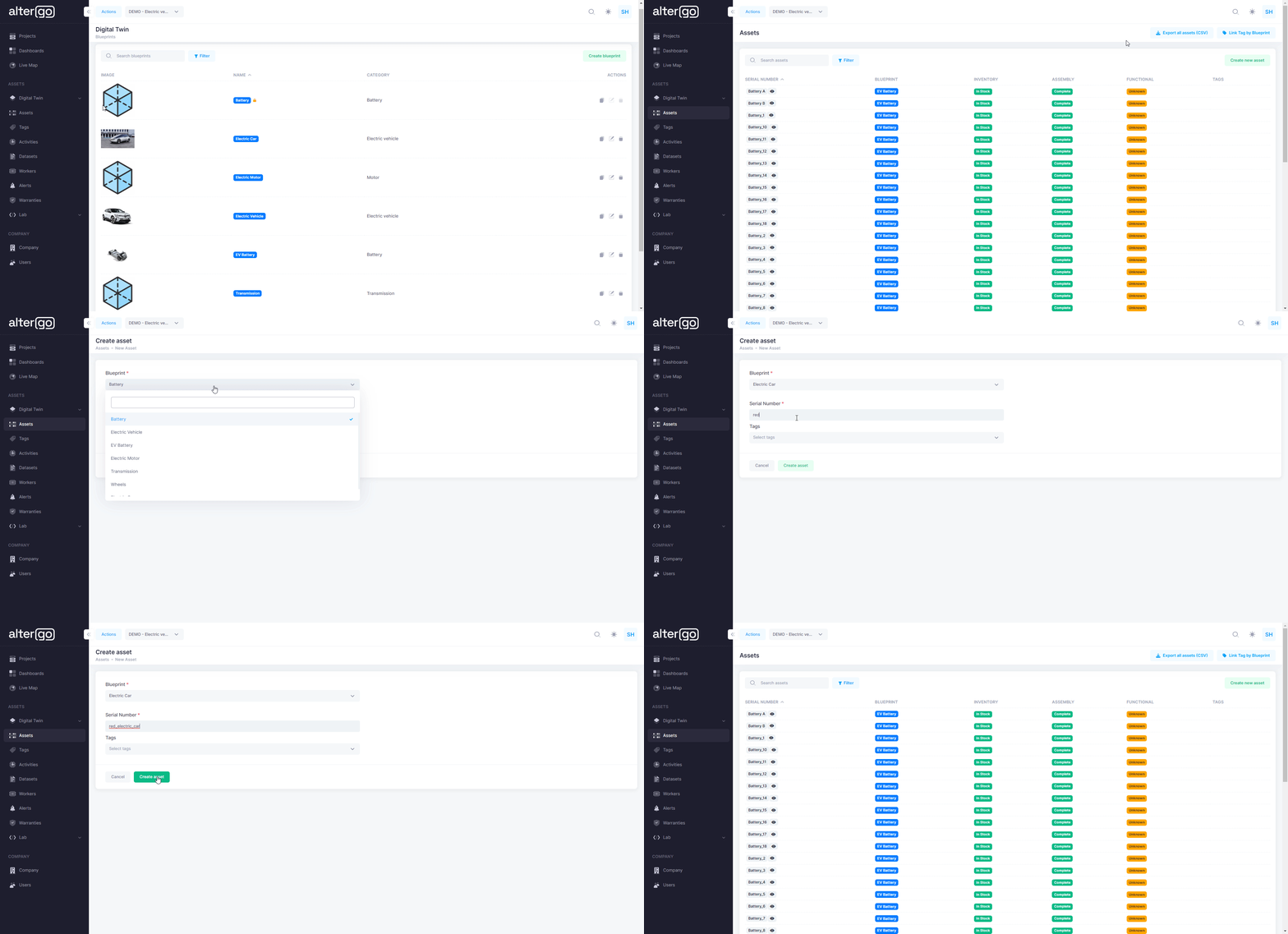
Now lets create an asset of the electric car on the platform using the below serial number to indicate each type of asset.
- red_electric_car
- black_electric_car
Steps:
- Click on "assets" on the left hand side of the panel.
- Click on "create new asset".
- Select the blueprint(electric car) associated with this asset from the drop-down section.
- Enter the serial number, "red_electric_car" and "black_electric_car".
- Click on "create asset".
Assemble the asset
Now, we will link the sub-components of the electric car(children asset) with the asset of electric care( parent asset) to establish the connection between the elements.
This is the tutorial to assemble the asset. I have assembled the asset "black_electric_car". Similarly, assemble the asset "red_electric_car". Steps:
- Click on the asset serial number.
- On the left hand side under the Children section, click on the icon at the extreme right of "Electric Motor".
- A new dialog will appear. Enter the serial number of the electric motor asset(electric_motor_black).
- Click on Assemble.
- Similarly, click on the icon at the extreme right of "Transmission System".
- A new dialog will appear. Enter the serial number of the transmission asset(transmission_black).
- Click on Assemble.
- Now similarly, repeat the same steps for wheels until you have assembled all the four wheel assets.
.gif)
Create Tags
Tags are used to create a link between different assets. It is used to conduct aggregate-level analysis or visualization over multiple assets by grouping them together under a standard tag.
We will add the "ElectricVehicle" tag to the two electric car assets we created, "red_electric_car" and "black_electric_car".
This is the tutorial to create tags for the asset.

Conclusion
In this section, we moved one step further and learned to create sub-components of a blueprint and created the dependant entities like parameters, units, sensors, categories. We also learned to create and assemble an asset using the digital twins and link tags to the assets.